
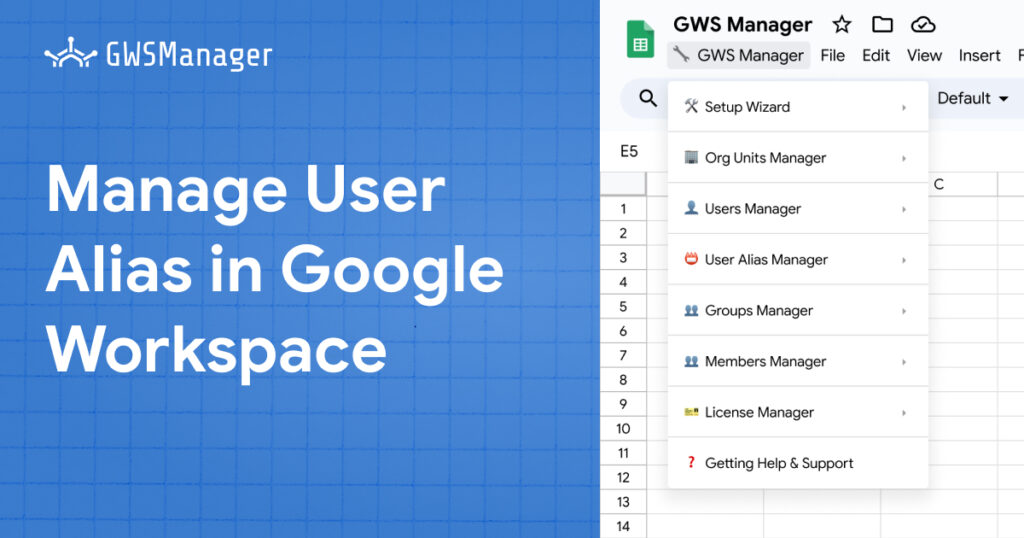
Alias management is an essential aspect of user administration in Google Workspace, allowing users to receive emails at multiple addresses without the need for additional accounts. By using aliases, organizations can streamline communication, manage team inboxes, and handle role-based addresses (such as info@ or support@) more effectively. GWS Manager integrates seamlessly with Google Sheets to make managing aliases straightforward and efficient. This guide covers how to use GWS Manager to create, delete, and export user aliases within Google Workspace.
Why Manage Aliases in Google Workspace?
Aliases are valuable for redirecting emails to the appropriate users or teams without creating separate accounts. They allow users to manage communications across multiple addresses, whether for job roles, departments, or projects. Managing aliases in GWS Manager enables administrators to quickly adjust email routing and user reach within Google Sheets, making alias management easier to scale across large organizations.
Using the Alias Management Function in GWS Manager
With GWS Manager’s Alias Management Function, administrators can add, delete, and export aliases directly within Google Sheets. Here’s a breakdown of how each feature works.
1. Exporting Existing Aliases

Exporting aliases provides a comprehensive overview of all existing aliases for users within your organization. This allows administrators to track alias assignments and make updates as needed.
- Navigate to: GWS Manager > User Alias Manager > Export User Aliases.
- Result: This function will export all aliases into a Google Sheets tab, showing key details:
- Primary Email: The user’s main email address.
- Alias Email: The alias email associated with the primary address.
- Total Aliases: The total number of aliases linked to each primary email.
Tip: Exporting alias data is useful for auditing, as it lets administrators ensure that all aliases are appropriately assigned and updated.
2. Creating New Aliases for Users

Adding new aliases is a frequent requirement for roles that involve multiple responsibilities or inboxes, such as support, sales, or general inquiries. GWS Manager enables bulk creation of aliases in Google Sheets, reducing time and effort.
- Navigate to: Open the Create User Aliases sheet.
- Enter the following details:
- Primary Email: The main email address of the user you’re assigning the alias to.
- Alias: The alias email address you want to create.
- Run the Function: Select GWS Manager > User Alias Manager > Create User Aliases to create the aliases.
Possible Status Messages:
- Alias Creation Successful: The alias was created successfully.
- Error: Invalid Input – alias_email: The alias email format is incorrect or the domain is invalid.
- Error: Resource Not Found – userKey: The specified primary email does not exist.
- Missing Fields: Ensure all required fields are filled out to avoid errors.
Pro Tip: Aliases can only be created within your organization’s domain, so double-check email formats to avoid formatting errors.
3. Deleting Aliases

Removing outdated or unnecessary aliases helps keep your email infrastructure organized and efficient. Whether you need to remove temporary aliases or ones no longer in use, GWS Manager’s alias deletion function makes it easy to perform this task in bulk.
- Navigate to: Open the Delete User Aliases sheet.
- Enter the following details:
- Primary Email: The main email address associated with the alias.
- Alias: The alias email address you want to delete.
- Run the Function: Select GWS Manager > User Alias Manager > Delete User Aliases to remove the aliases.
Possible Status Messages:
- Alias Deletion Successful: The alias was successfully deleted.
- Error: Invalid Input – alias_email: The alias email format is invalid.
- Error: Resource Not Found – userKey: The specified primary email does not exist.
- Missing Fields: Ensure all required fields are complete to avoid issues.
Reminder: Deleting an alias is permanent and cannot be undone. Make sure to verify aliases before deleting them to prevent unintentional removal.
Advantages of Using GWS Manager for Alias Management
Managing aliases with GWS Manager offers several advantages:
- Bulk Processing: Create or delete multiple aliases at once, saving time and improving accuracy.
- Centralized Control: Manage alias data directly in Google Sheets, allowing for easy tracking and updates.
- Reduced Errors: With structured sheets, administrators can avoid common errors that occur with manual alias management.
- Quick Auditing: Easily export and review all aliases in the organization, ensuring all email addresses are up to date and correctly assigned.
The Alias Management Function in GWS Manager brings flexibility and simplicity to managing email aliases within Google Workspace. From creating role-based aliases to removing outdated ones, administrators can handle these tasks directly in Google Sheets, allowing for quick, scalable, and error-free alias management. With GWS Manager, managing email aliases becomes a streamlined process that saves time and increases accuracy across the organization.
